After a quick answer instead? See the FAQ for setup, billing, troubleshooting and privacy questions.
GridSentinel is a battery automation service for Australian Amber Electric customers. Three things need to be in place before signing up.
1. An active Amber Electric account. GridSentinel reads your live wholesale prices and forecasts through Amber's API. If you're not on Amber, there's nothing for the engine to act on. More about Amber.
2. A supported home battery. See the Your battery section for the current list and what each brand needs.
3. Amber SmartShift disabled. If SmartShift is controlling your battery, it will conflict with GridSentinel. The fix is simple and described below.
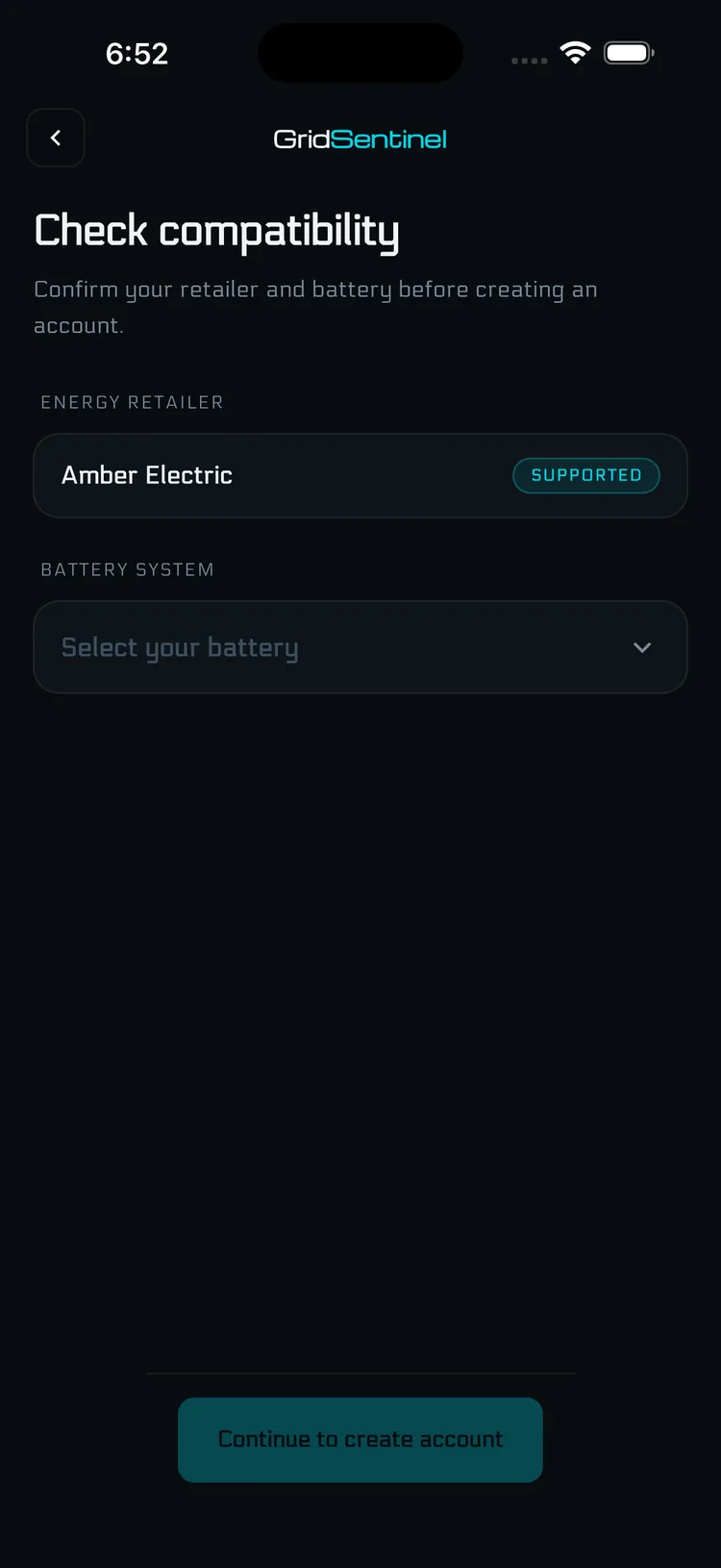
Onboarding is a short guided setup. You can stop and resume later: your progress is saved.
Your API key lives on Amber's website (app.amber.com.au), not the Amber mobile app. To create one:
Your token is shown only once. Copy it somewhere safe before closing the dialog, then paste it into GridSentinel. The key starts with psk_.
Two services on the same battery conflict, so SmartShift needs to be off before GridSentinel takes over. The same path works for Tesla Powerwall, Sigenergy and FoxESS.
Once SmartShift is off, head back to GridSentinel and continue the Connect Battery step.
Today GridSentinel supports Tesla Powerwall, Sigenergy SigenStor, and FoxESS. Other brands like AlphaESS, Enphase, BYD, Goodwe, Sungrow and Solax aren't supported yet.
Join the waitlist on the homepage and tell us which battery you have. The brand with the most waitlist signups goes next.
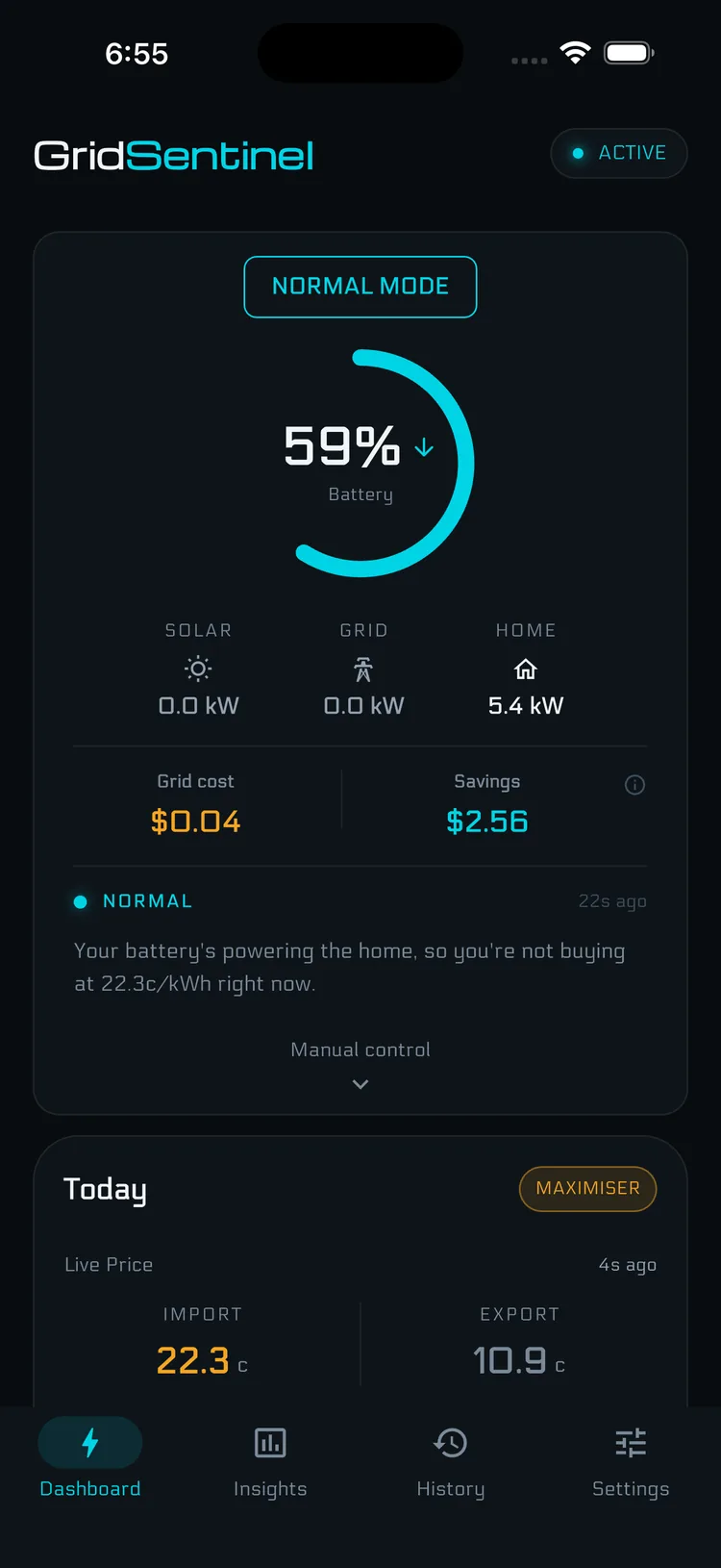
Every five minutes, GridSentinel reads your current Amber price, looks at the price forecast, checks your battery state, and decides what your battery should do next. It then sends that command to your battery and records the decision so you can see what happened and why.
You don't drive it minute-by-minute. You pick an automation mode (and a profile if you're on Forecast Optimiser), and the engine handles the rest. Every decision shows up in the History tab with a one-line reason.

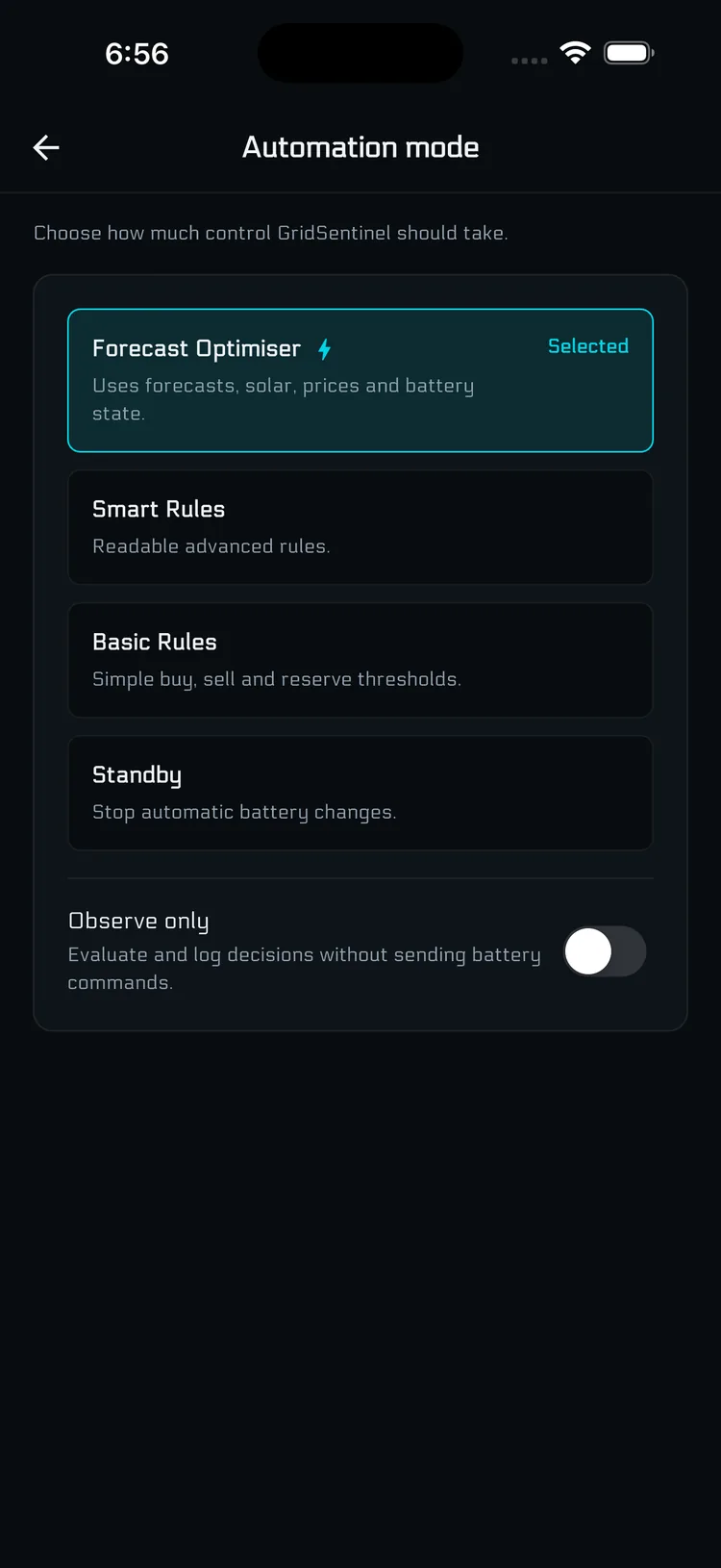
Open Settings → Automation to pick how GridSentinel drives your battery. Four choices.
Basic Rules. Simple price rules using your sell threshold, buy threshold and reserve. Default for new accounts. Easy to reason about and a sensible starting point.
Smart Rules. Build readable rules for how GridSentinel responds. For example, "export above 30c unless the battery is below 30%." Rules start once GridSentinel has live battery and price data.
Forecast Optimiser. Plans charge and export ahead using prices, forecasts, solar, household load and battery state. The deepest mode, with a per-account profile you pick.
Standby. No automation. The engine doesn't change your battery. Manual controls still work. Use this when you want to pause without disconnecting.
There's also an Observe only toggle near the bottom of the Automation section. When on, GridSentinel evaluates and logs decisions without actually sending any commands to your battery. Useful for watching what the engine would do before letting it act.

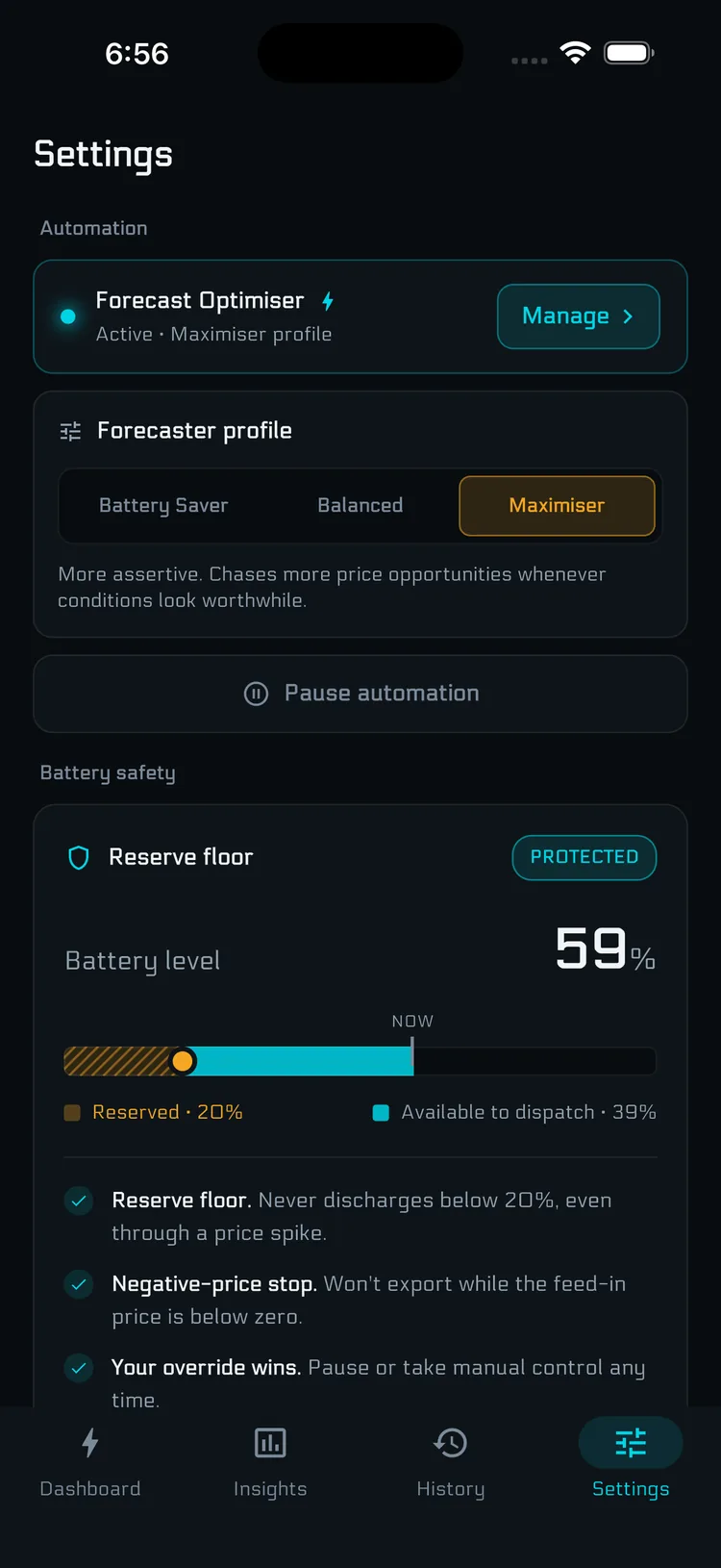
When you use Forecast Optimiser, you pick one of three profiles. The selector appears in the Automation card in Settings once Forecast Optimiser is the active mode. The profile shapes how aggressive the engine is.
Battery Saver. Protects backup reserve and battery wear. Acts only on stronger opportunities.
Balanced. The default. Balances savings, battery wear and backup reserve.
Maximiser. Pursues more price opportunities and may cycle the battery more often.
You can switch profiles any time. Changes take effect on the next cycle.

At each five-minute cycle the engine picks one of four actions.
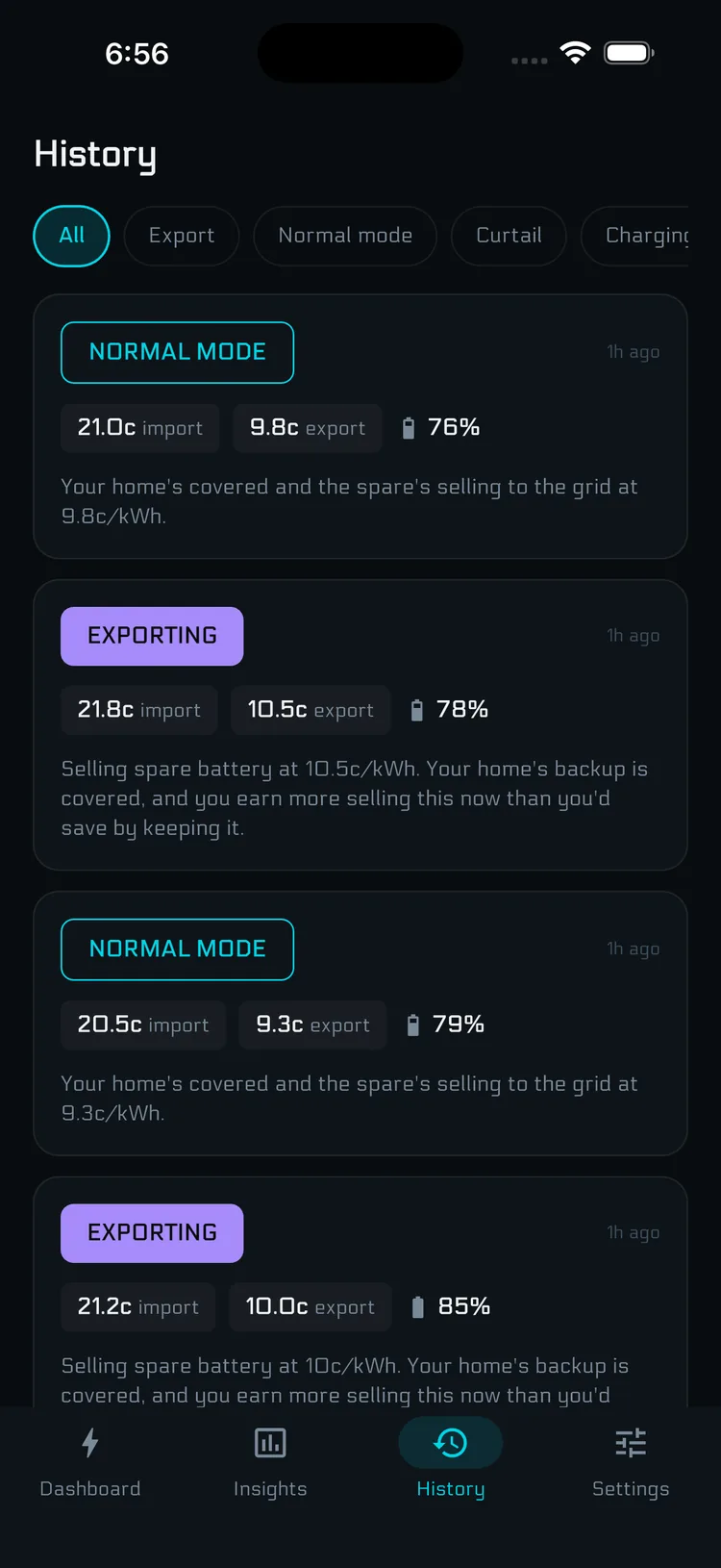
Every decision the engine makes is logged. Open the History tab to see them in order, with the action chosen, the price at the time, the battery state of charge, and a plain-English reason.
Decisions you triggered manually are tagged with a Manual pill so they're easy to spot. Engine decisions show a one-line reason like "exporting at 22.4c with 75% charge."
Filter the list by All, Export, Normal mode, Curtail or Charging to focus on one type at a time.

Powerwall 2 and Powerwall 3 are both supported.
What you need: your Tesla account login. The onboarding flow opens Tesla's official sign-in page so you never give us your password. We get a token back that can be revoked any time from your Tesla account.
If the link breaks: changing your Tesla password or revoking third-party access invalidates the token and pauses your account. The dashboard shows a Reconnect button that takes you back through Tesla login.
For how AC-coupled solar inverters affect curtailment, see the note in How it works.
Sigenergy is supported. Two requirements before we can control your battery safely.
1. mySigen registration must be complete. Your installer needs to have finished the mySigen commissioning. Check by opening the mySigen app: if you can see your battery and SoC, you're good.
2. Amber SmartShift must be off. Toggle it off in the Amber app (see Getting started).
Once both are done, we control the battery via Sigenergy's command channel, with telemetry coming back through webhooks.
FoxESS uses a personal API key model. The homeowner generates a key in the FoxESS Cloud portal and pastes it during onboarding.
Important: the key must come from the homeowner account, not the installer account. Installer accounts can't bind to your battery for control purposes.
If you're not sure which account you have, check whether the FoxESS Cloud portal lets you change your battery's working mode. If it does, you have the right account.
You're handing control of an asset that costs as much as a car. The engine has hard limits it will never cross, no matter which automation mode you're on.
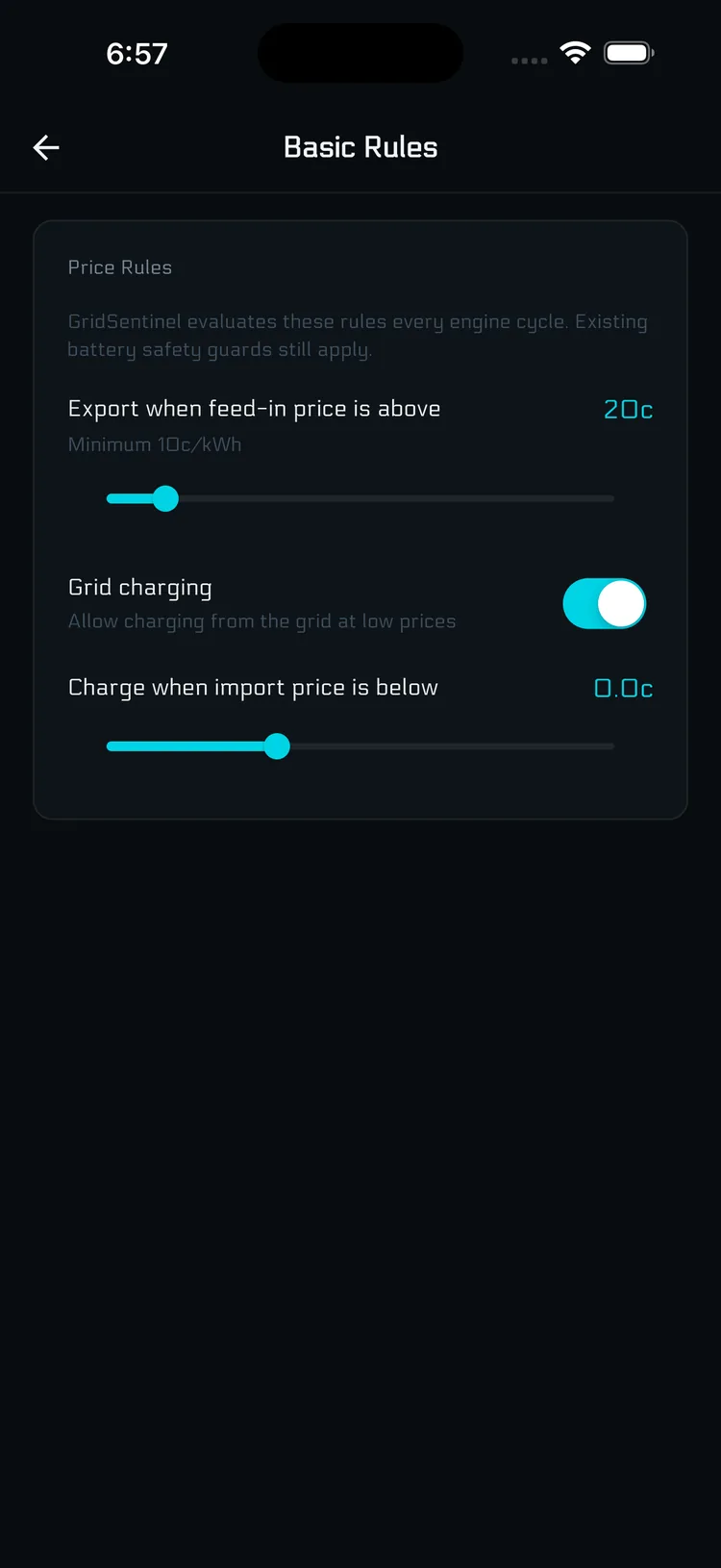
Basic Rules has three controls you set yourself, all under Settings → Basic Rules.
Sell threshold (export). The feed-in price (cents per kWh) above which GridSentinel exports from your battery. Default 20c. Higher means you only export on bigger price spikes; lower means you export more often but earn less per spike. Minimum 10c, with a confirmation prompt below 15c because lower thresholds cycle the battery harder.
Grid charging toggle. Master switch for charging from the grid, found in Settings → Basic Rules. It's on by default, but because the buy threshold below starts at 0c, the battery only charges from the grid when import prices go negative. Turn it off if you never want to draw from the grid, whatever the price.
Buy threshold (charge). The import price below which the engine charges your battery from the grid. Default 0c, so charging only kicks in when import prices go negative. Raising the threshold lets the engine charge more often, but only when prices fall below the value you set. Range -10c to +20c.

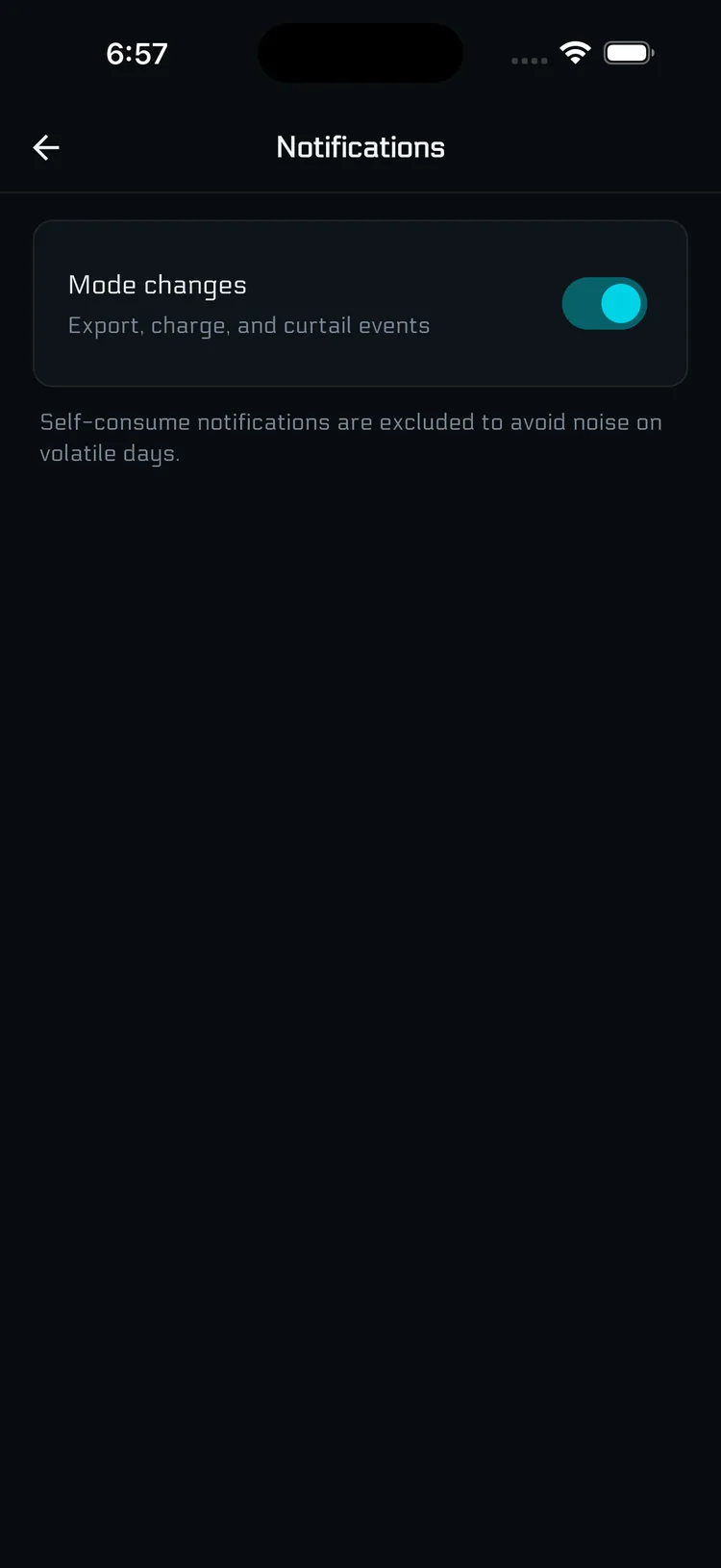
Settings → Notifications has a single toggle: Mode changes. When on, you get a push notification when the engine moves to Export, Charge or Curtail. Normal-mode (self-consume) transitions are excluded so you're not pinged every five minutes on volatile days.
Notifications run on all your signed-in devices.

GridSentinel can move energy in and out of your Amber account, so security matters. Three pieces.
Passkey. A passwordless sign-in method backed by your phone's Face ID or fingerprint. Set up during onboarding. You can add more passkeys on additional devices, or remove all passkeys, from Settings.
Authenticator app (TOTP). Optional, set up via QR code in Settings. Useful if you'd rather use Google Authenticator, 1Password or similar as a backup sign-in method.
App Lock. A toggle in Settings that requires biometrics to open the app. Locks the app when it goes into the background.
Sensitive in-app actions (manual control, removing sign-in methods, disconnecting your battery) also prompt for a quick re-verification even when you're already signed in. This isn't a setting you toggle; it's always on for those actions.
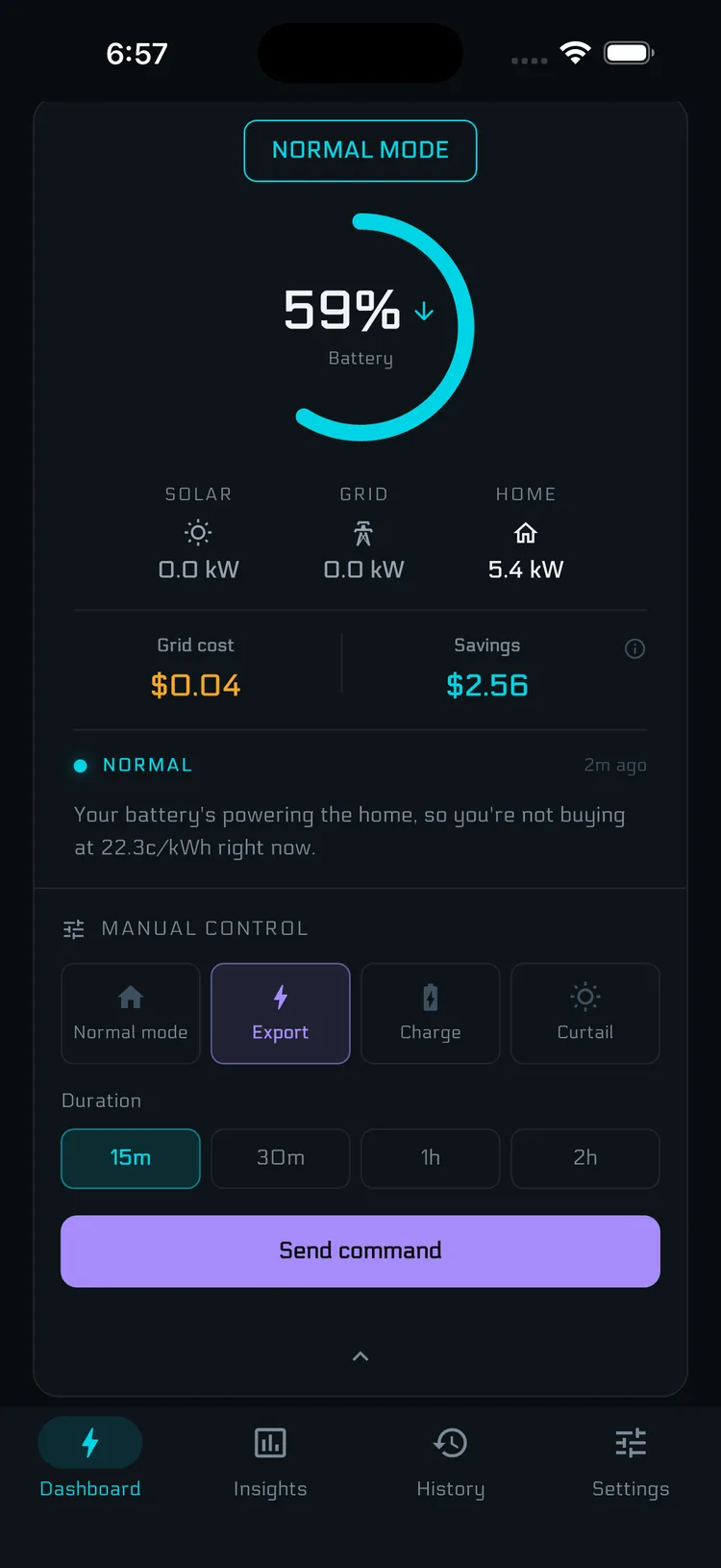
Tap the mode card on the dashboard to open manual controls. Pick a command, pick how long it runs for, confirm.
Commands: Export, Charge, Normal mode, Curtail.
Durations: 15, 30, 60 or 120 minutes. The dashboard shows a countdown while a manual command is active. Normal automation resumes when the timer ends, or when you tap cancel.
Two safety prompts can appear before a command runs:
Your minimum reserve still applies to manual commands.

Two ways to stop the engine.
Standby (soft). Settings → Automation → Standby. The engine stops sending commands but stays linked to your battery. Manual controls still work. Switch back to any automation mode any time.
Disconnect (hard). Settings → Linked services → Disconnect. Removes our access and credentials. You'd need to re-onboard the battery to use GridSentinel again.
For a temporary break (going on holiday, having work done), Standby is the right choice.
Troubleshooting, subscription and billing, privacy and account questions live in the FAQ, so there's one place to look and nothing drifts out of sync:
The fastest way to reach us is in-app: Settings → Feedback & Support sends a report with diagnostic info attached. Or email hello@gridsentinel.app.